
Welcome message
Choose a greeting and see its text in the chat preview
Architecture and functionality of greeting selection
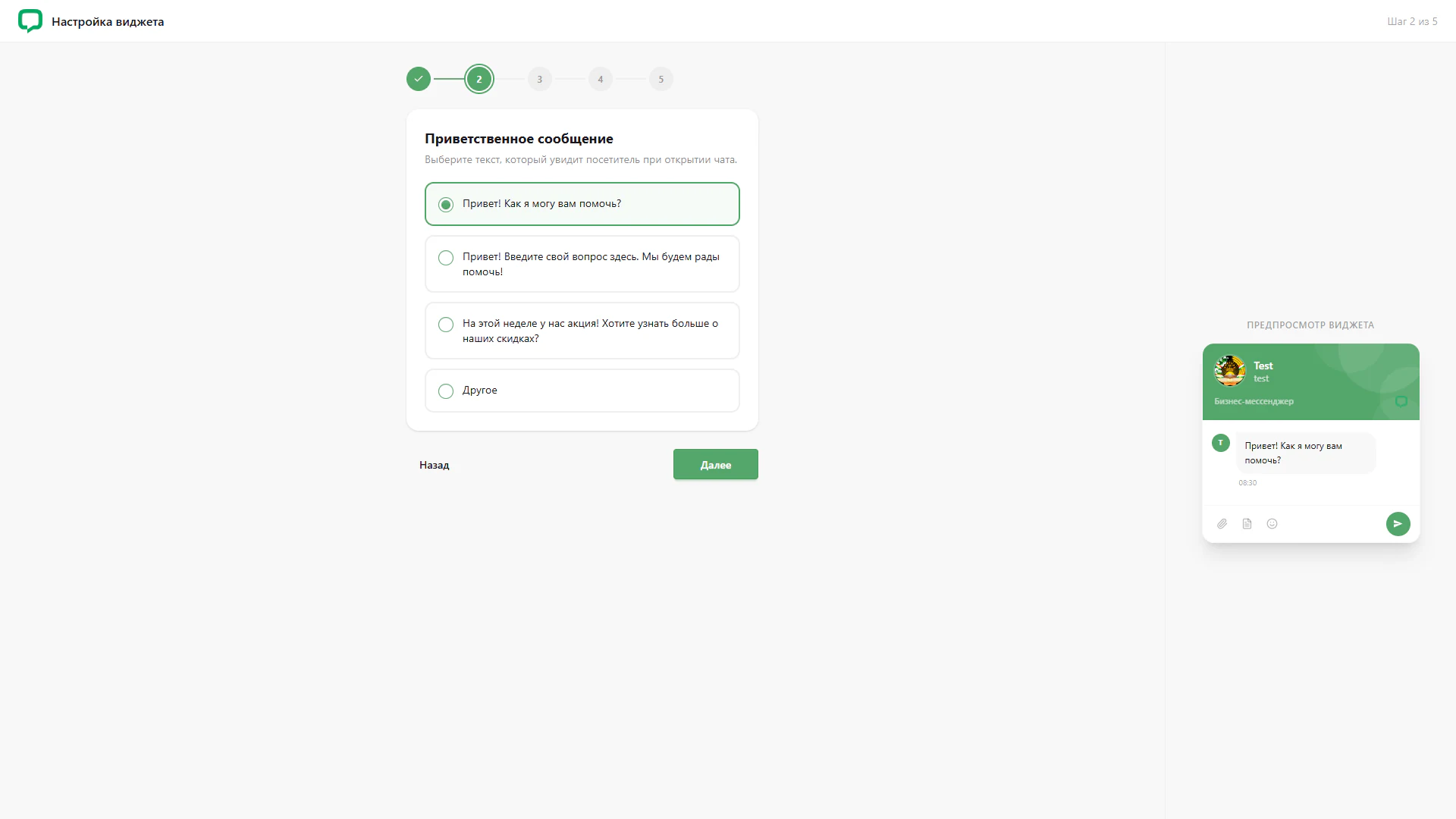
The second LiveChat setup step configures the message visitors see when opening chat. The selection form and preview sit side by side so the text can be assessed within the widget.
1. Preset messages
Three templates offer a brief greeting, an invitation to ask a question and a promotion message. Each occupies a separate block with a radio control. The first template is selected and outlined in green.
2. Custom option
An Other option provides an alternative to the preset texts. It is not selected in this screenshot, so no custom message field is shown. All choices appear in a single list.
3. Chat presentation
The selected greeting appears in a message bubble with a timestamp in the preview. The operator name, department and avatar remain above it. This presentation helps assess text length and wrapping in a narrow chat window.
4. Step navigation
The first stage has a check mark, and the second is highlighted as current. Back and Next controls below the card indicate movement between stages.
The screen connects greeting selection with the visitor’s view. Preset templates simplify configuration of the first message.