
Widget setup — operator details
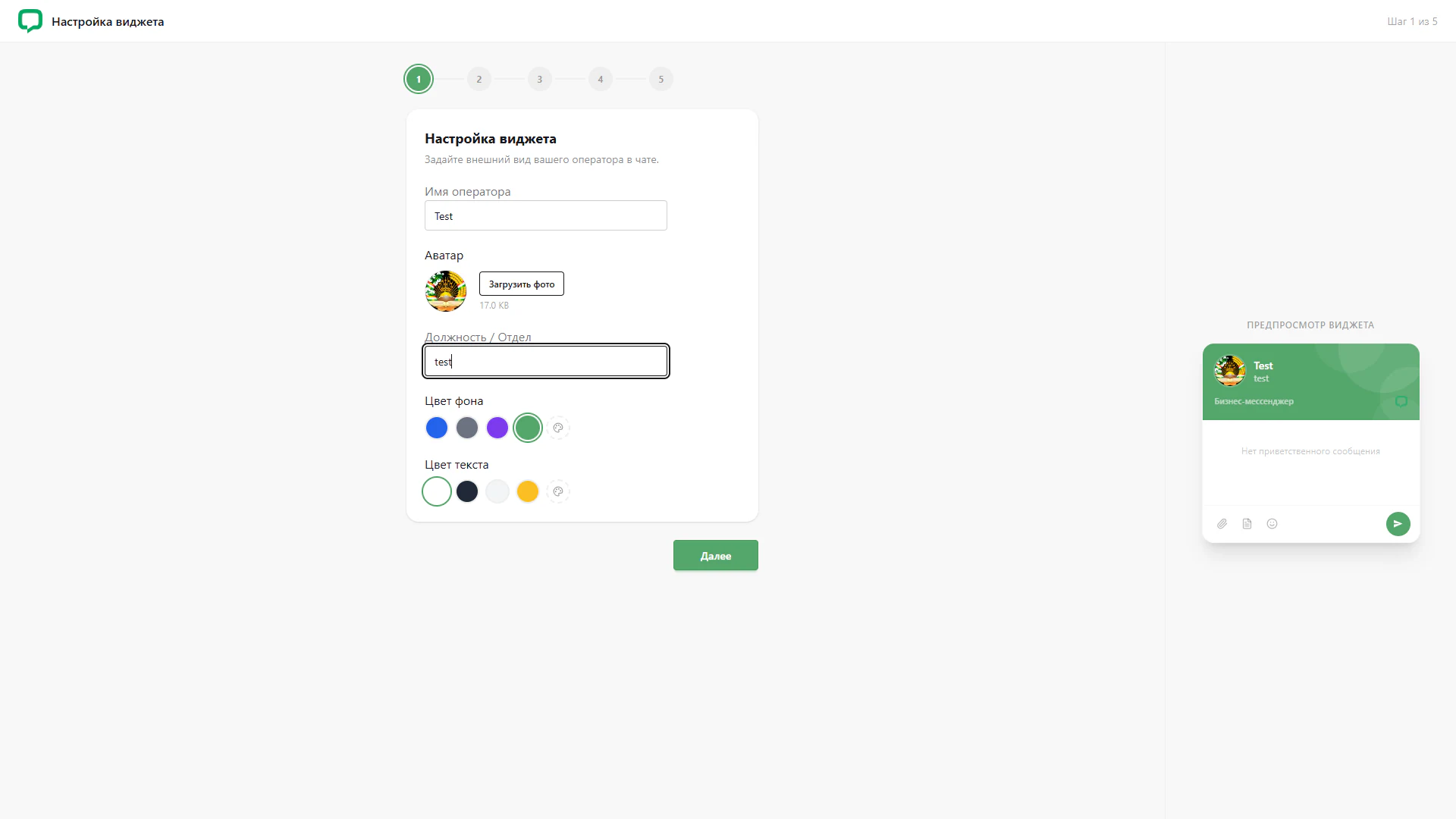
Entered operator details and an uploaded avatar shown in the widget preview
Architecture and functionality of operator details setup
This screen shows the populated first step of the LiveChat setup wizard. The card on the left contains operator details and a selected avatar, while the widget on the right displays the same information. The Step 1 of 5 indicator preserves the context of the current stage.
1. Operator name and department
The name field contains “Test” and the Position / Department field contains “test”. The department field is focused and outlined. Both values appear in the preview header, allowing users to compare their entries with the operator’s presentation in chat.
2. Uploaded avatar
A selected image in a circular format replaces the default placeholder. A file size of 17.0 KB appears beside the Upload photo control. The same avatar is displayed in the widget header, illustrating the profile’s appearance after an image has been chosen.
3. Colours and preview
Green is selected for the background and white for the text, with outlines marking the active swatches. The preview combines these colours with the name, department and avatar. The message area indicates that no welcome message is set, and the bottom bar contains attachment icons and a send button.
4. Continuing setup
The five-step sequence remains above the form with the first stage highlighted. A green Next button below the card indicates how to continue setup. The screenshot captures the state before moving to the next step.
This example shows how entered fields relate to the chat’s appearance. Placing the form beside the preview helps users assess the operator’s presentation before continuing setup.