
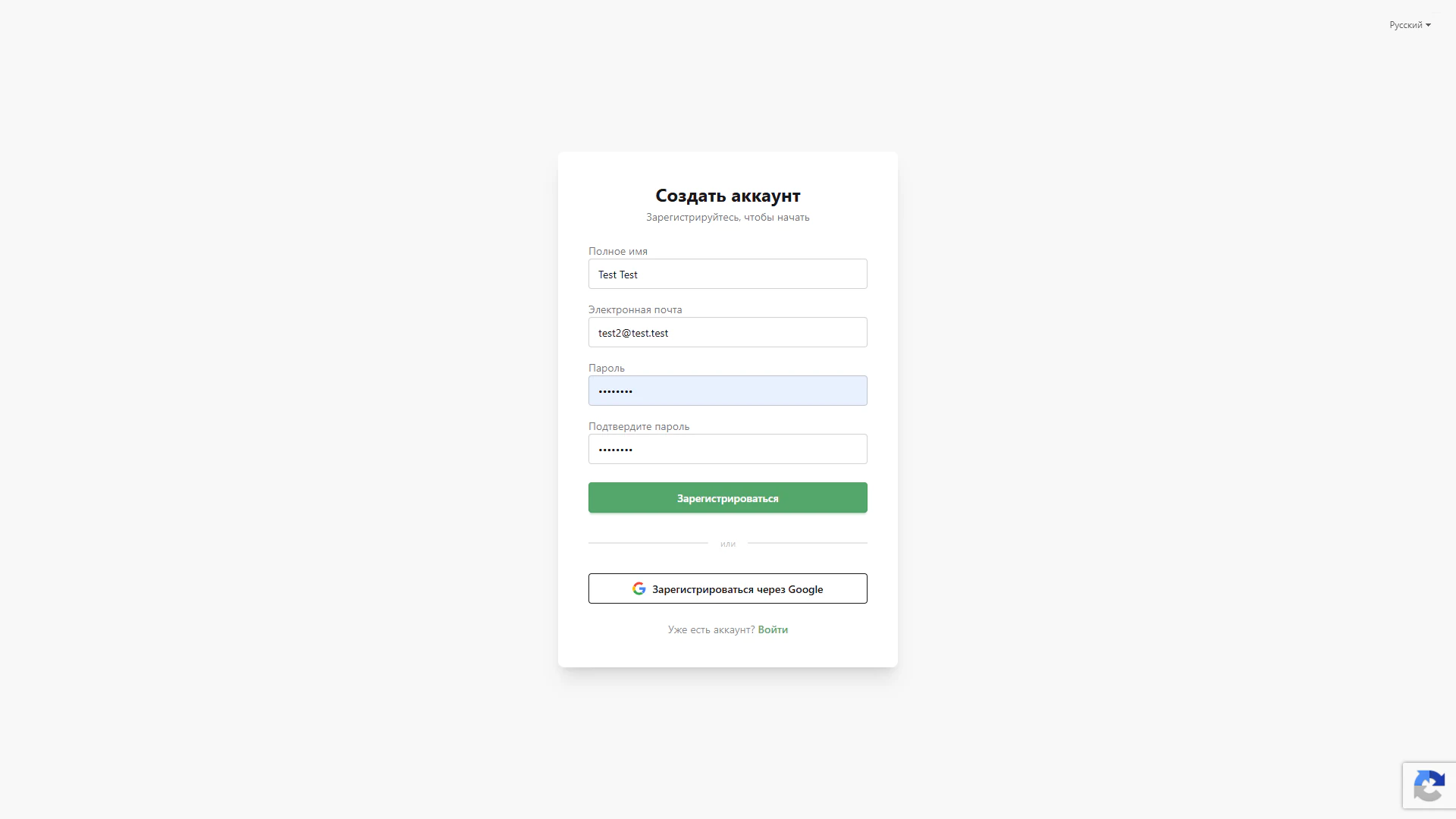
Completed registration form
Example of entered details before registering a LiveChat account
Architecture and functionality of the completed registration form
This screen shows the Create account page after details have been entered and before submission. A white card with a soft shadow sits in the centre of a light background. The familiar layout illustrates registration while the form is being completed.
1. User details
The full name and email fields contain test values. Labels remain above the fields, keeping each value’s purpose clear after entry. This example shows a populated form rather than the result of account creation.
2. Password and confirmation
Both password fields are populated, with characters masked by dots. The main password field has a light blue background. A separate confirmation field allows the chosen password to be entered again; this screen does not show the outcome of a match check.
3. Form submission and Google
The green Register button below the fields highlights the next step. An “or” divider separates the Google registration button beneath it. Users can follow the main form-based journey or choose the alternative Google account method.
4. Supporting elements
A Sign in link at the bottom of the card serves existing users. Language selection appears in the upper-right corner of the page, with a Google reCAPTCHA badge below. These elements provide access to sign-in, language choice and an indication of protection against automated requests.
The screenshot presents an intermediate registration state: details are entered, passwords are masked and the submission action remains prominent. No errors or successful registration confirmation are displayed.